102 lines
3.1 KiB
Markdown
102 lines
3.1 KiB
Markdown
---
|
||
title: Python安装
|
||
date: 2020-07-05 14:54:42
|
||
tags: [Python]
|
||
categories: [Python]
|
||
author: Anges黎梦
|
||
---
|
||
|
||
### Python的安装
|
||
|
||
#### 安装包下载
|
||
|
||
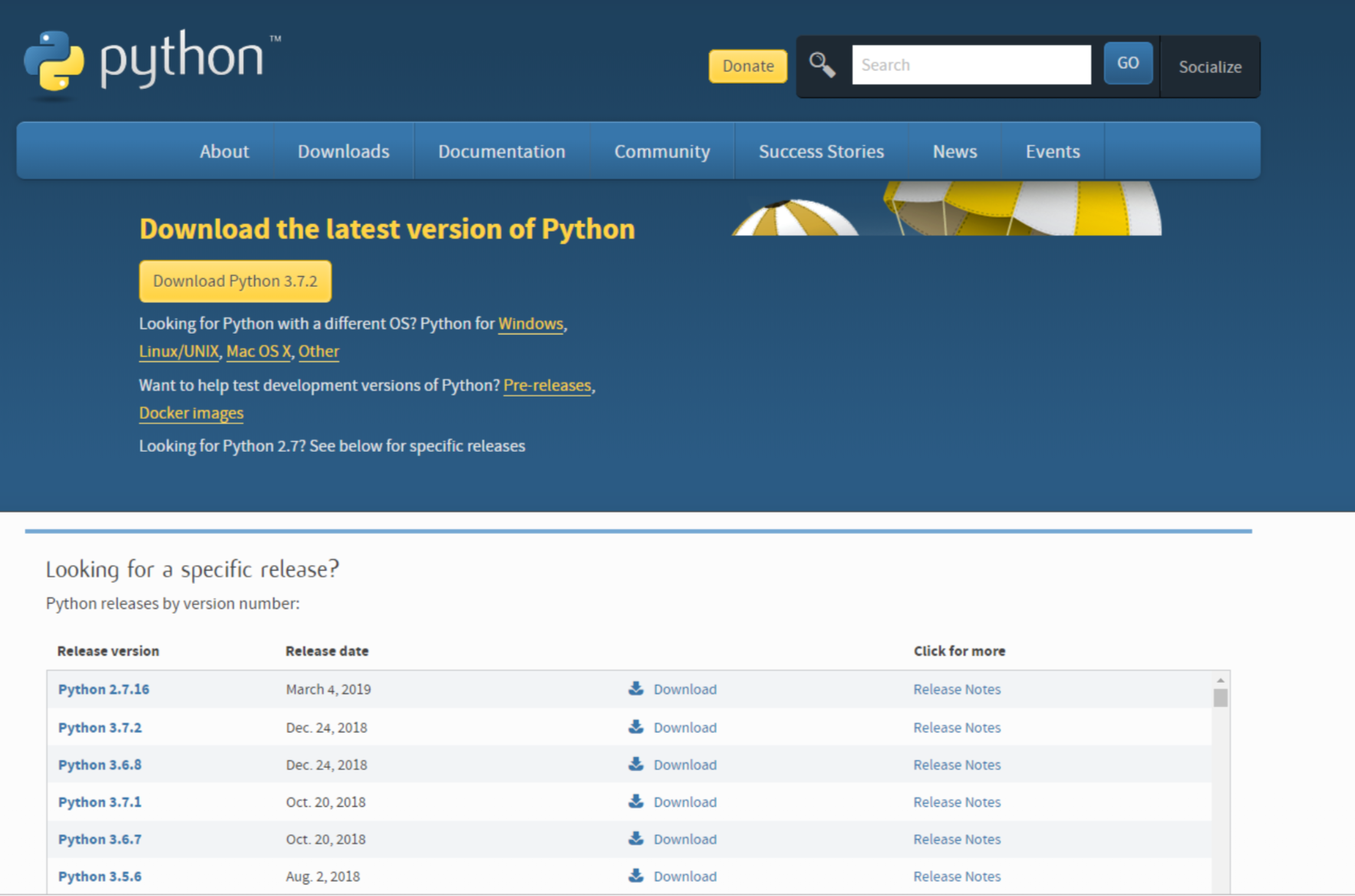
下载地址:Python官网:https://www.python.org/downloads/
|
||
|
||
|
||
|
||
可以在页面中选择您想要下载安装的python版本,
|
||
|
||
我们选择的版本是Python3.7.2 选择版本后,
|
||
|
||
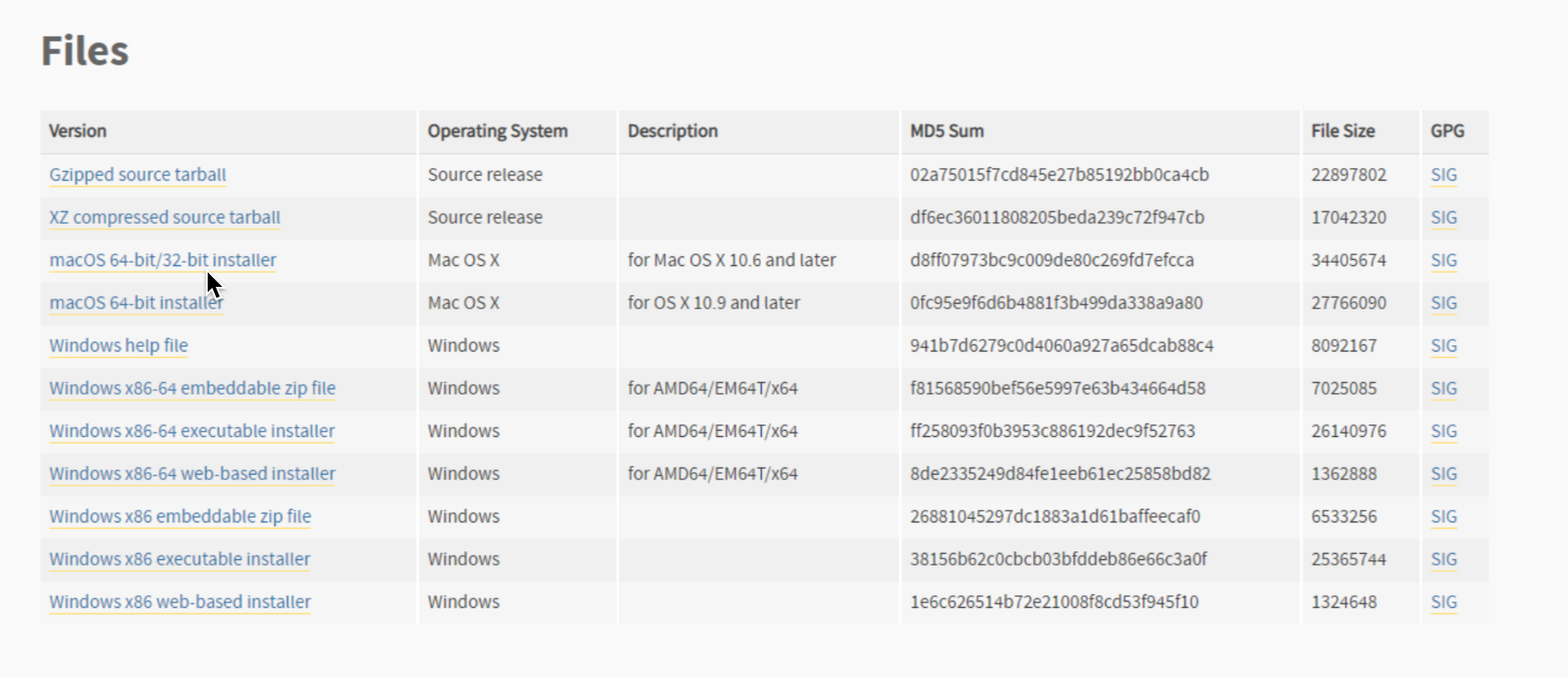
进入下一个页面,页面拖到最下方,我们可以看到一个表格。
|
||
|
||
|
||
|
||
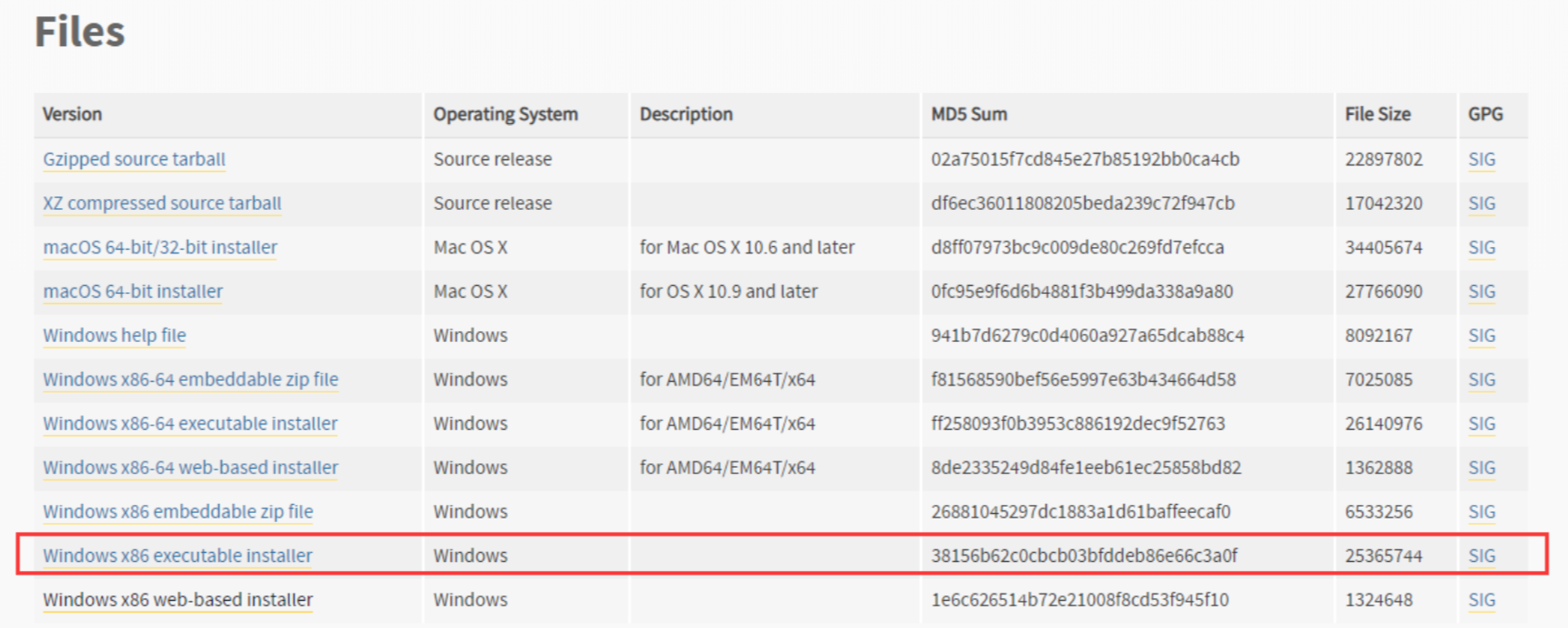
我们可以在这个表格中,选择您想要下载安装的Python安装包。
|
||
|
||
我们本篇选择的版本是:
|
||
|
||
|
||
|
||
点击后,即可下载Python安装包。
|
||
|
||
#### 安装Python(Windows版本)
|
||
|
||
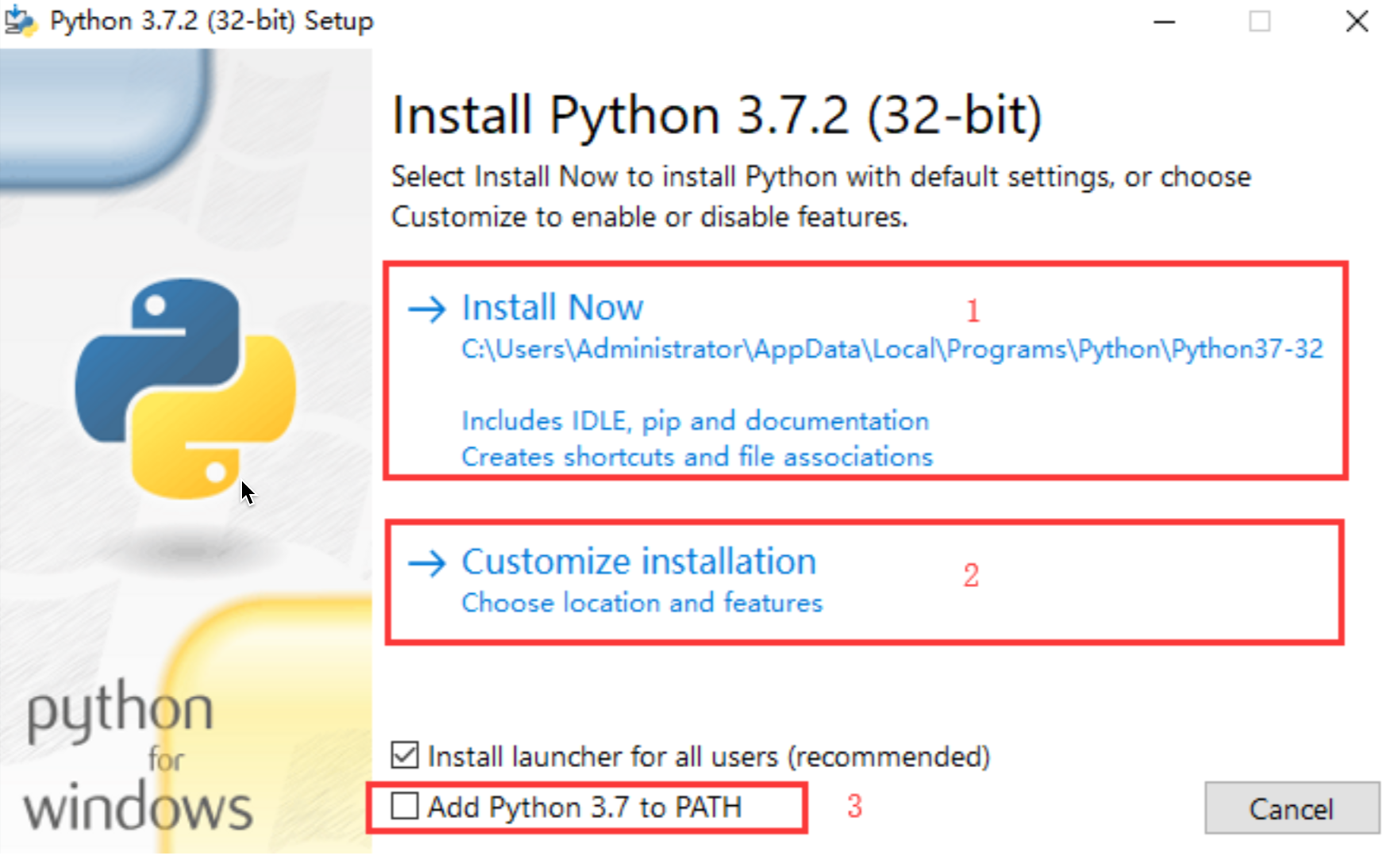
双击我们下载好的安装包,打开安装界面(如下图)。
|
||
|
||
|
||
|
||
红圈块的地方,给大家说明一下。
|
||
|
||
1)默认安装
|
||
|
||
这里的默认安装,包含了Python的安装目录,我们可以看到红圈中的路径,那个路径,就是我们Python安装完的路径。
|
||
|
||
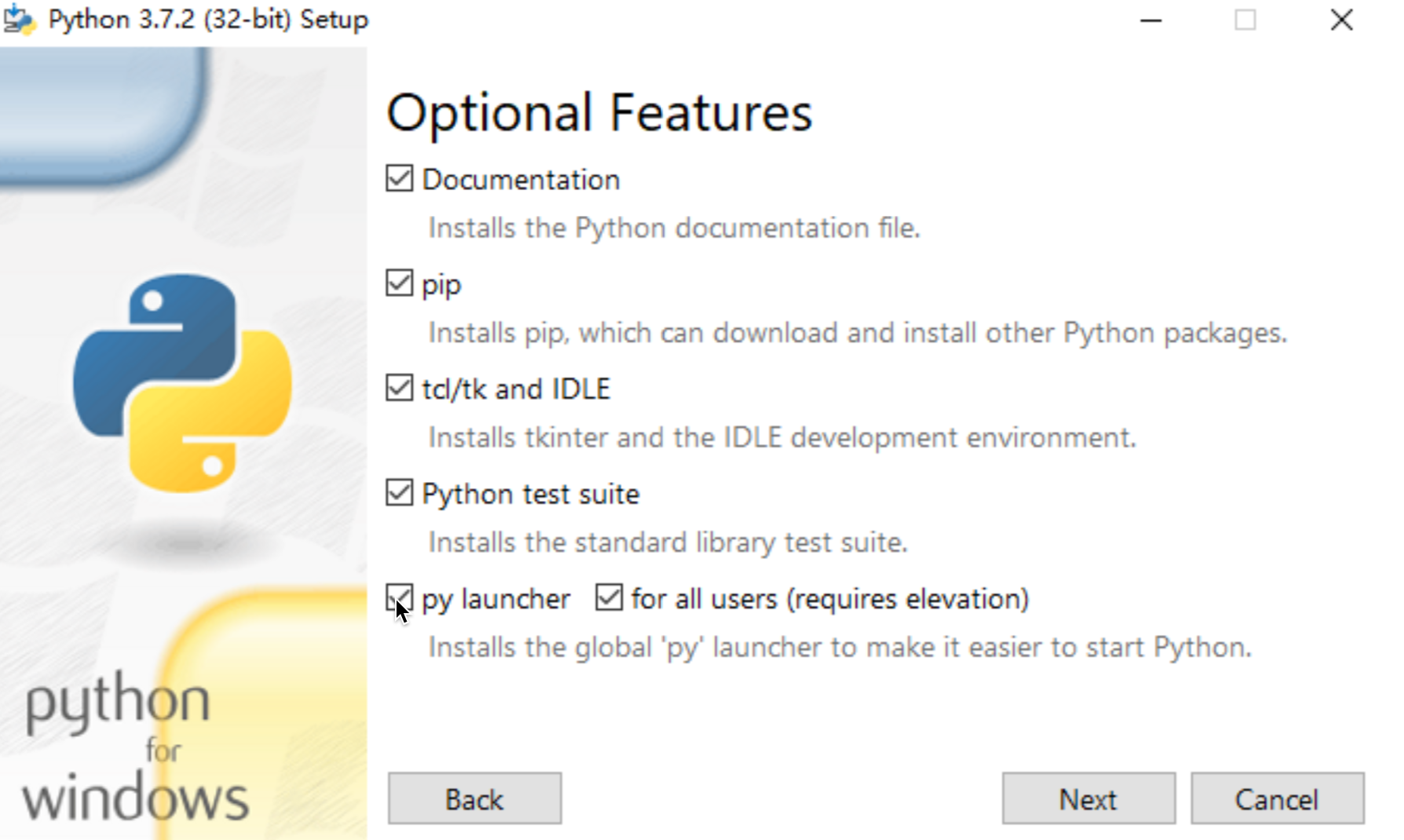
2)自定义安装
|
||
|
||
|
||
|
||
|
||
|
||
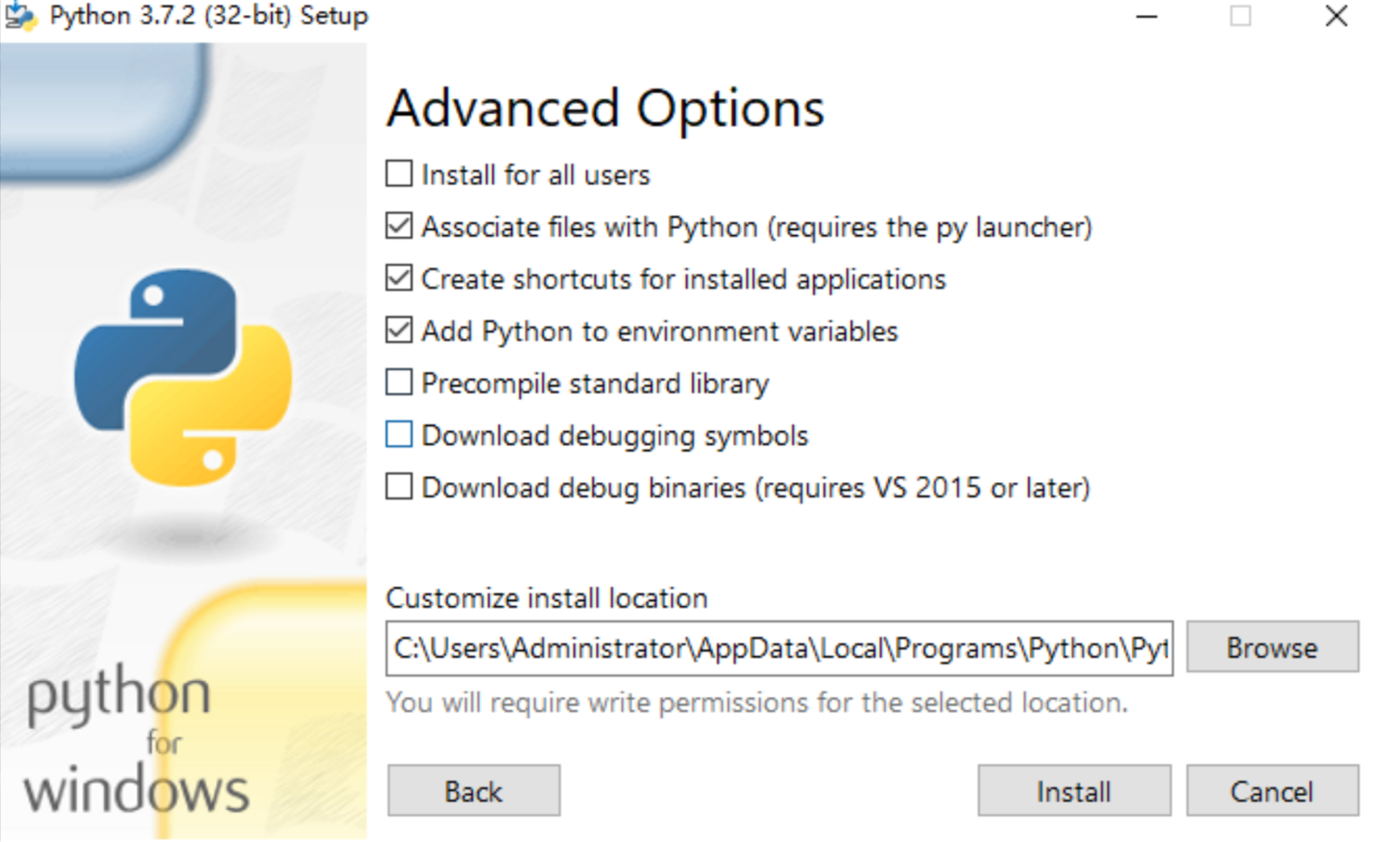
在下面的步骤中,我们可以选择安装的很多内容,这里我们需要注意的就是这个安装目录。
|
||
|
||
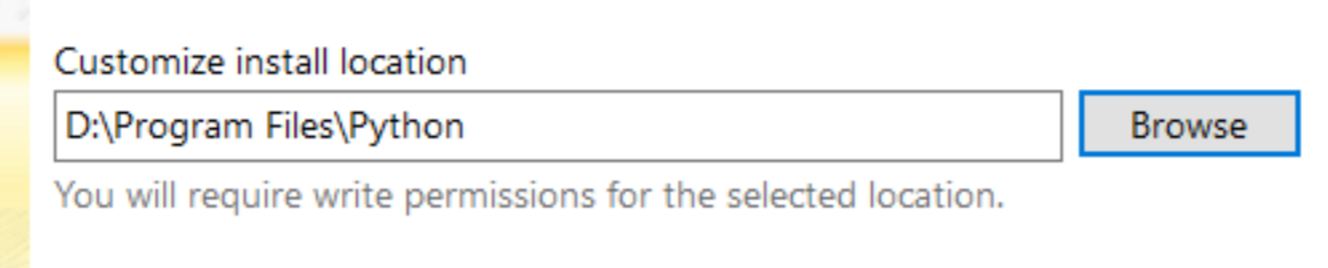
我们并不推荐安装至C盘,所以大家尽量换一个盘来装。
|
||
|
||
我们这里换到了D盘。
|
||
|
||
|
||
|
||
3)添加Python至环境变量
|
||
|
||
环境变量这里,大家一定要勾选,因为可以节省我们很多事情。
|
||
|
||
防止因为环境变量配置错误而出现异常。
|
||
|
||
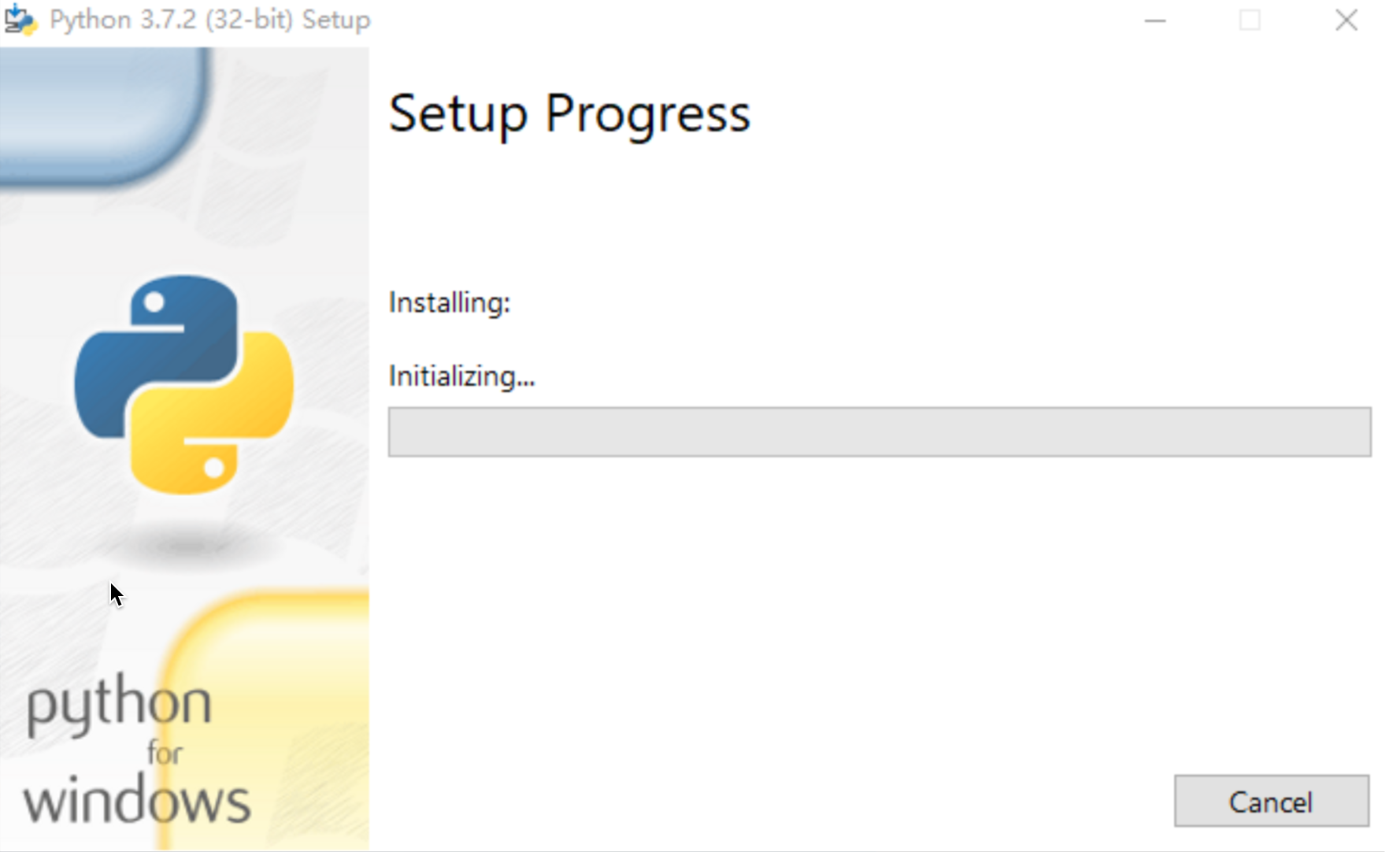
点击安装后,Python就已经开始安装了。
|
||
|
||
|
||
|
||
|
||
|
||
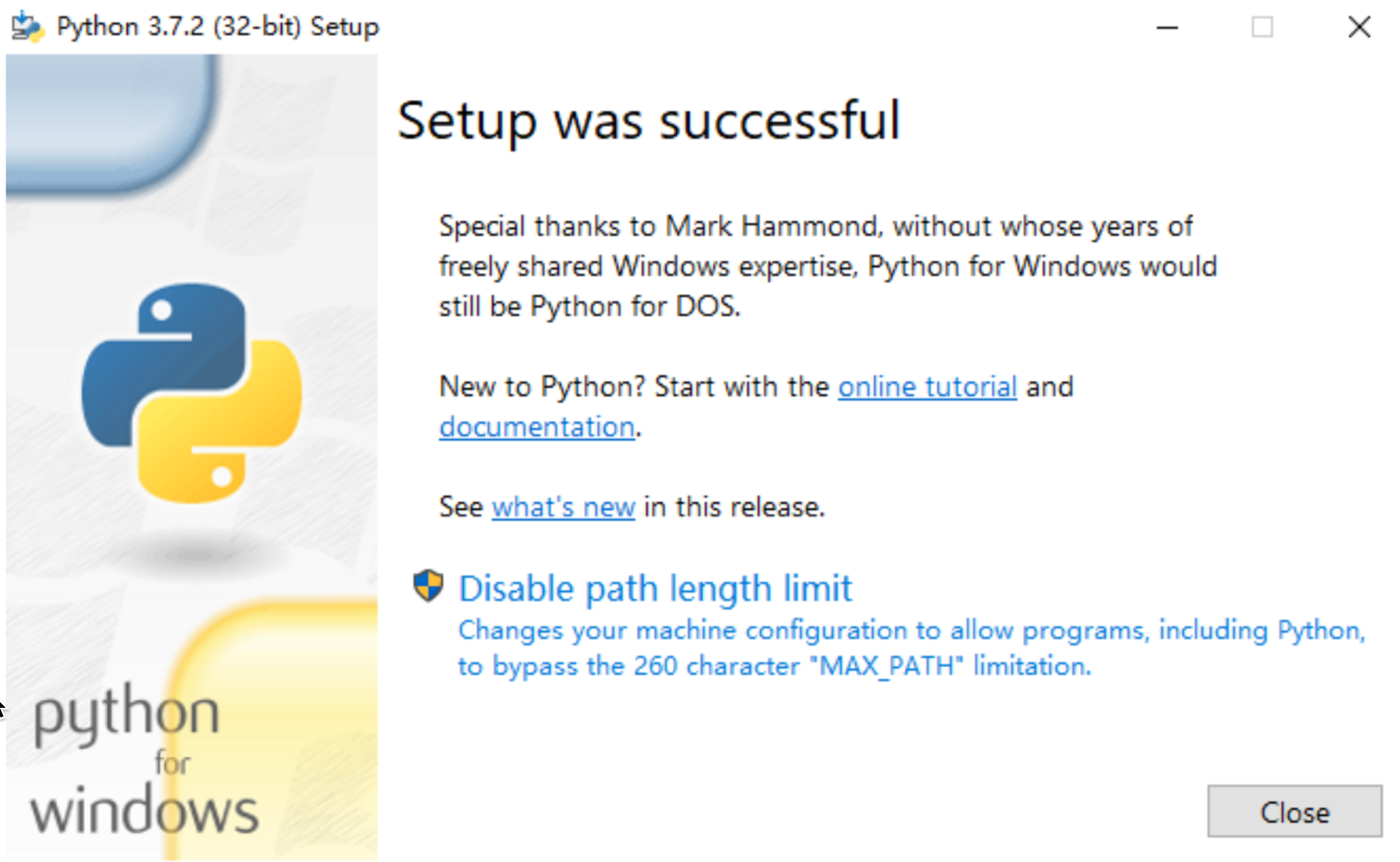
当出现如上图时,证明我们的Python就已经安装成功了。
|
||
|
||
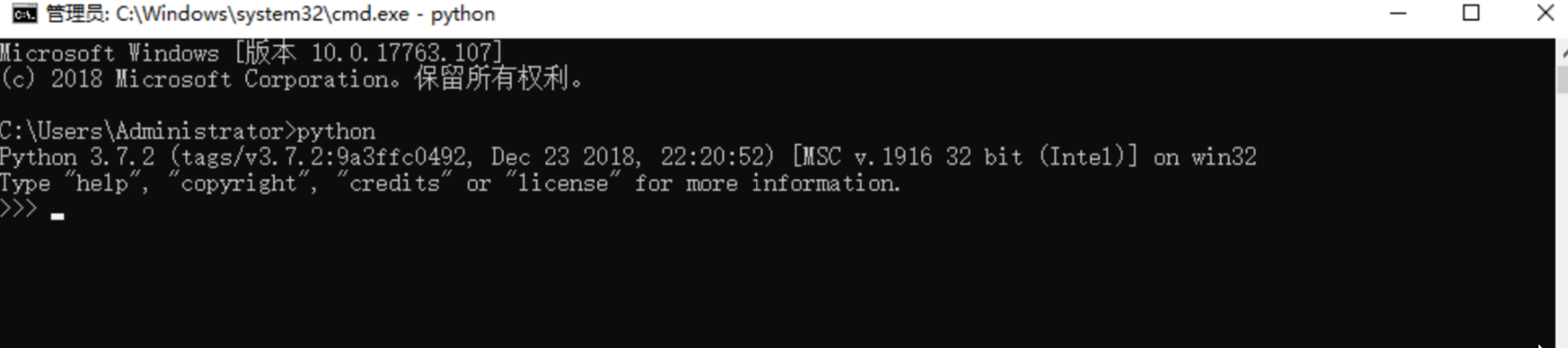
我们现在就可以来检查一下Python是否安装成功了。
|
||
|
||
win+R打开我们的dos界面,输入python
|
||
|
||
|
||
|
||
当出现如上图时,证明我们的python正确安装了。
|
||
|
||
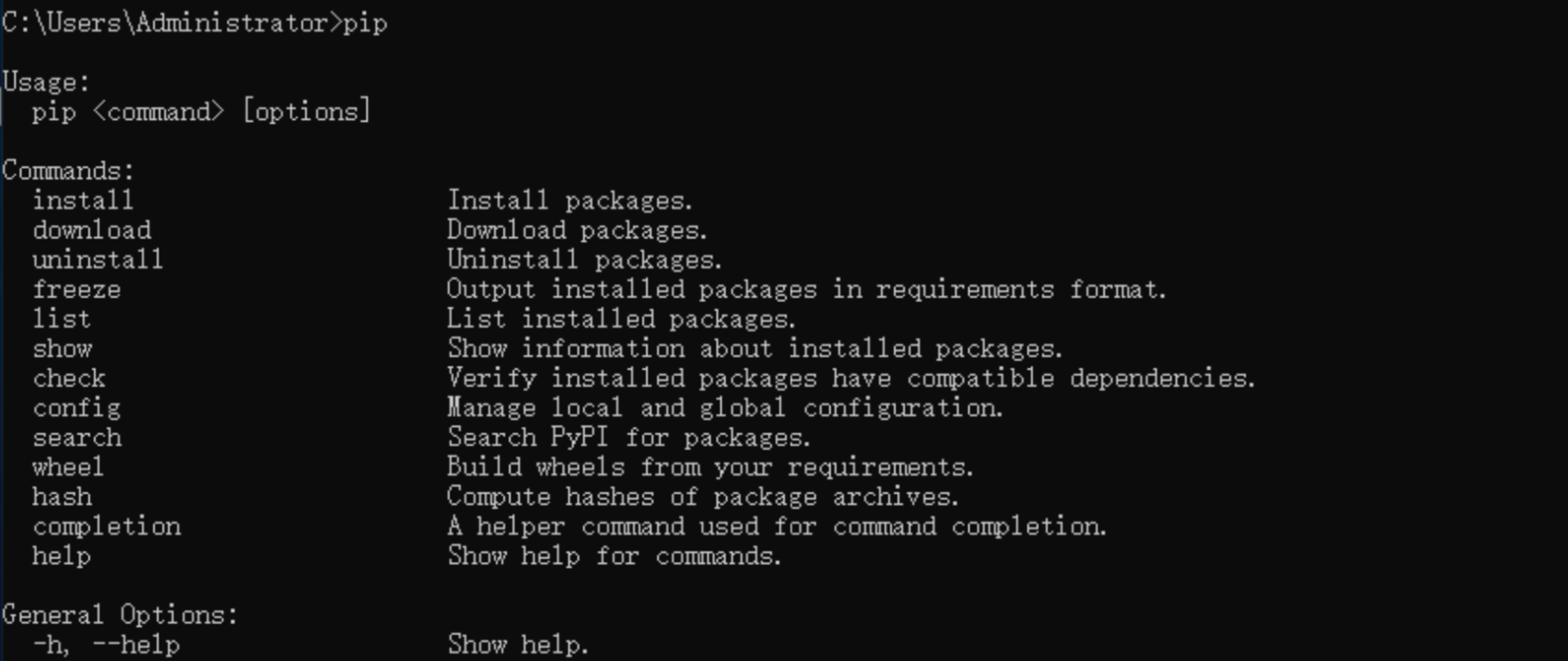
输入pip,可以查看我们的pip是否可以正常使用。
|
||
|
||
|
||
|
||
#### 安装Python(Mac)
|
||
|
||
|
||
|
||
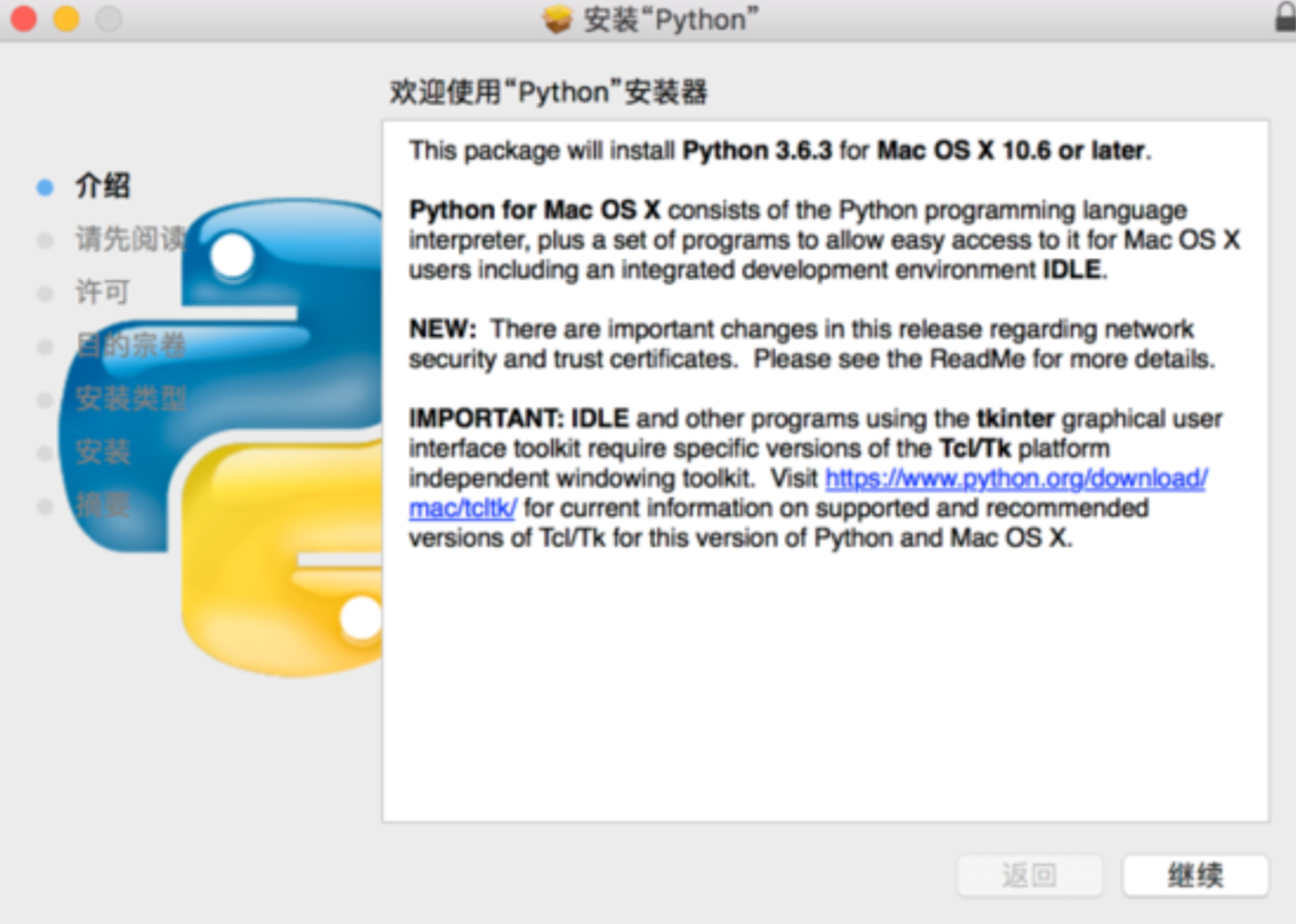
打开Python安装器安装Python。
|
||
|
||
正常点击继续,下一步安装即可,他的环境变量都是自动添加的,不需要我们过多干涉。
|
||
|
||

|
||
|
||
由于Mac系统自带Python 2.x版本,所以这里的验证命令有些不同。
|
||
|
||
而是python3。
|
||
|
||
#### Python版本兼容与使用
|
||
|
||
[同一台设备Python兼容](http://www.angeszhu.cn/2020/06/06/python-version/)
|